Device names, menus, and supported connection methods vary by manufacturer, model, operating-system version, and network setup.
Use the steps below as general checks, and consult your TV or streaming-device manual when a setting is unavailable.
SCREEN MIRRORING GUIDE · CONNECTION BASICS
How to prepare your TV and phone for wireless screen mirroring
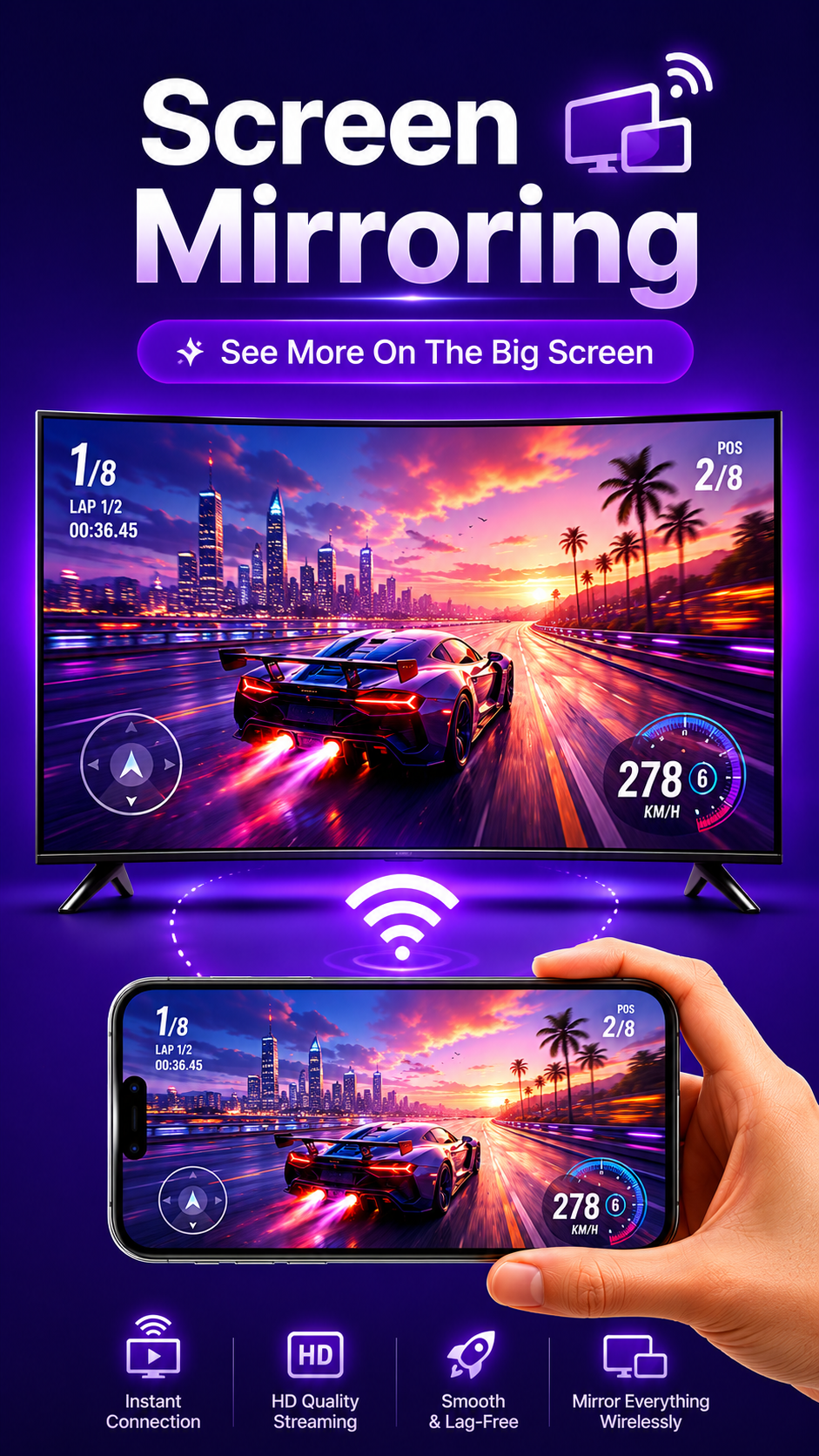
Before starting a mirroring session, confirm that both devices support a compatible wireless display method. A TV with a casting receiver, Miracast support, or AirPlay support may use a different connection process.
Before you connect
- Turn on the TV and open its screen-mirroring, casting, or AirPlay receiving mode if the model requires it.
- Connect the phone and TV to the same local Wi-Fi network when the chosen method requires a shared network.
- Disable guest-network isolation or client isolation if your router separates devices from one another.
- Keep both devices reasonably close to the router and install available system updates.
- Check the TV manufacturer's instructions to confirm which phones and protocols are supported.
Important: Being connected to Wi-Fi does not guarantee compatibility. Some TVs support casting from selected apps but do not support full-screen mirroring.
ANDROID GUIDE · WIRELESS DISPLAY
How to mirror an Android phone to a smart TV
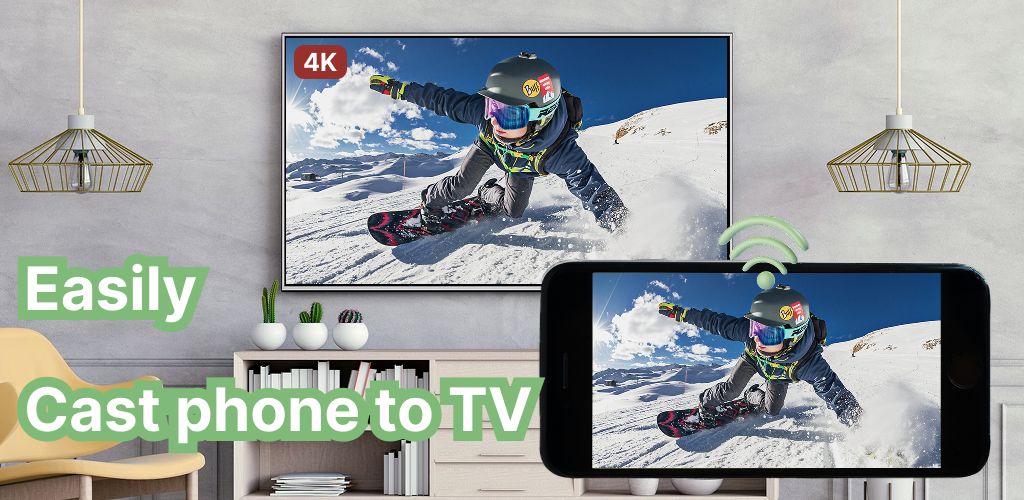
Android manufacturers use different names for wireless display features, such as Cast, Screen Cast, Smart View, Wireless Display, or Screen Share. The exact option depends on the phone model and Android version.
General steps
- Check that the TV supports the same casting or wireless-display technology as your phone.
- Enable the TV's receiving or screen-mirroring mode when necessary.
- On the phone, open Quick Settings or Settings and look for Cast, Screen Cast, Smart View, or a similar option.
- Select the TV from the available-device list and approve any prompt shown on the TV.
- To finish, return to the phone's casting control and choose Disconnect or Stop mirroring.
If the TV does not appear, check the network, restart both devices, and verify protocol compatibility. Some Android phones do not support every wireless-display standard.
IPHONE & IPAD GUIDE · AIRPLAY
How to mirror an iPhone or iPad to a TV
Apple devices commonly use AirPlay for screen mirroring. The receiving TV or streaming device must support AirPlay, or you need a compatible Apple TV or other supported receiver.
General steps
- Connect the iPhone or iPad and the AirPlay-compatible receiver to the same Wi-Fi network.
- Open Control Center on the Apple device.
- Tap Screen Mirroring and wait for the available receiver list.
- Select the correct TV or receiver. Enter an on-screen passcode if requested.
- To stop, open Screen Mirroring in Control Center and tap Stop Mirroring.
AirPlay support is model-specific. A TV that supports video casting from an app may not necessarily support full-device AirPlay screen mirroring.
TROUBLESHOOTING · DEVICE DISCOVERY
Why can't my phone find my smart TV?
If the TV is missing from the available-device list, work through these checks in order instead of repeatedly trying to connect.
- Confirm that the TV and phone support the same casting protocol.
- For network-based discovery, connect both devices to the same non-guest Wi-Fi network.
- Check router settings for AP isolation, client isolation, or separate VLANs that prevent local-device discovery.
- Turn off any VPN temporarily if it interferes with local-network discovery.
- Restart the TV, phone, and router, then try discovery again.
- Check whether the TV has a setting that allows new devices or screen-mirroring requests.
If discovery still fails, consult the TV maker's support page. The TV may not support the wireless protocol offered by the phone.
TROUBLESHOOTING · VIDEO & AUDIO
How to reduce screen-mirroring lag, freezing, or missing audio
Mirroring performance depends on the phone, receiver, Wi-Fi environment, video content, and the method used. These checks can help identify the source of a problem.
For lag or a frozen picture
- Move closer to the router or improve the Wi-Fi signal between devices.
- Pause large downloads or other bandwidth-heavy activity on the network.
- Close unused apps and restart the mirroring session.
- Try a lower video resolution if the app or receiving device offers that option.
For missing audio
- Raise the volume on both the phone and TV, and check mute settings.
- Check whether audio is being routed to Bluetooth headphones or another output.
- Test with another video or audio app to determine whether the issue is content-specific.
Some streaming apps restrict screen capture or external playback because of content-protection rules. A black screen in one app does not always indicate a faulty TV connection.
IPTV PLAYER GUIDE · PLAYLIST BASICS
What is an M3U playlist and how should I troubleshoot it?
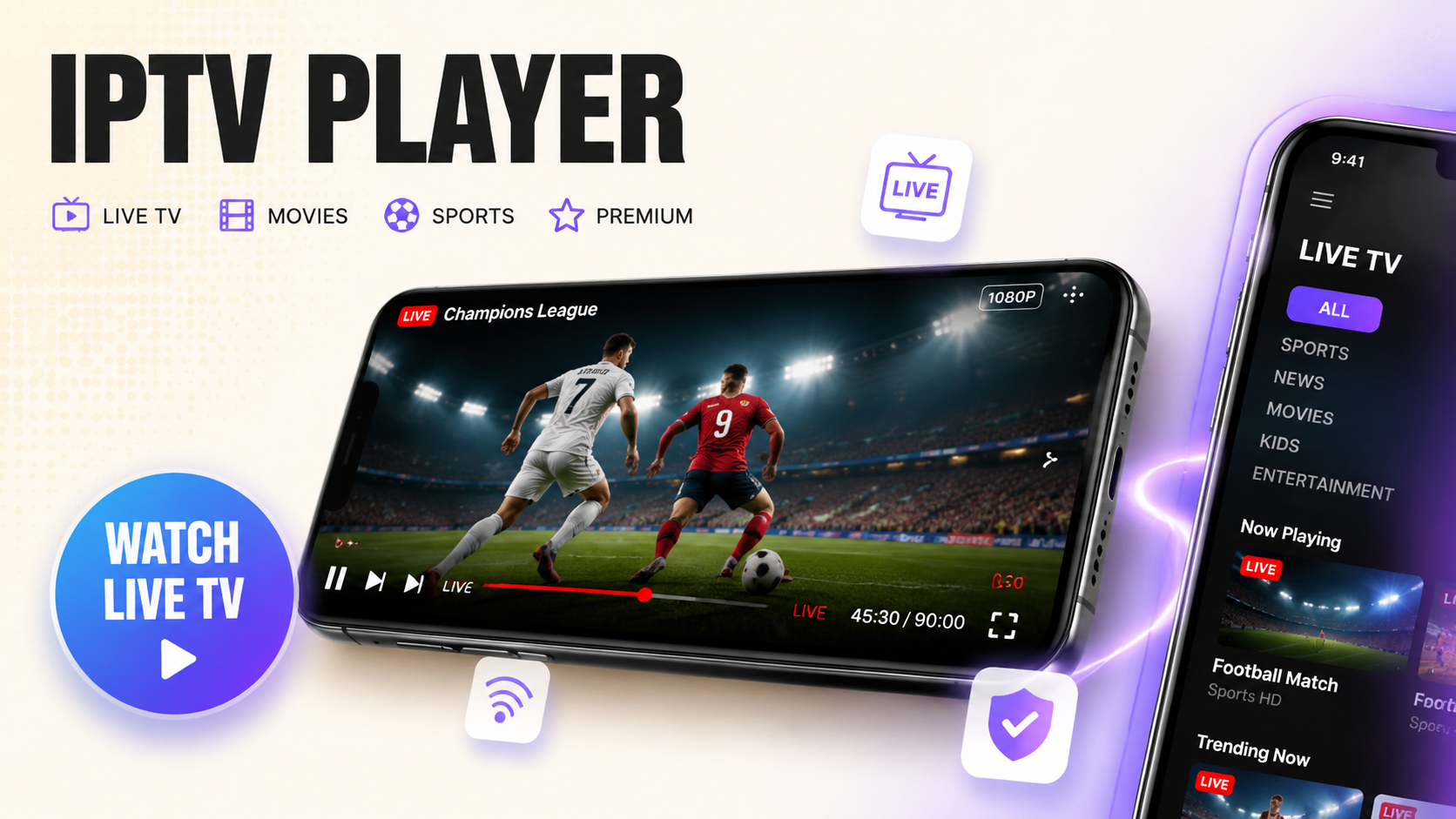
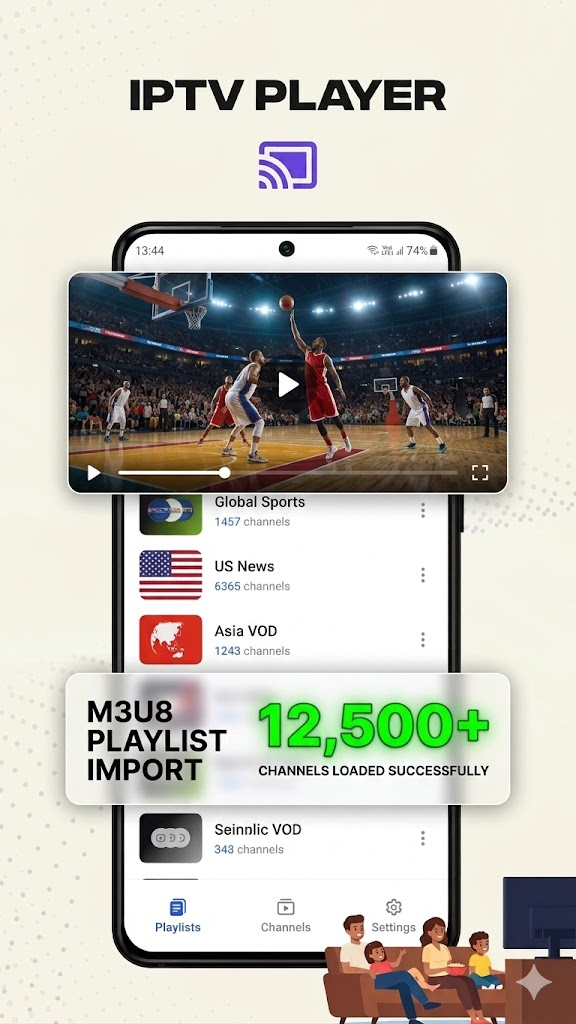
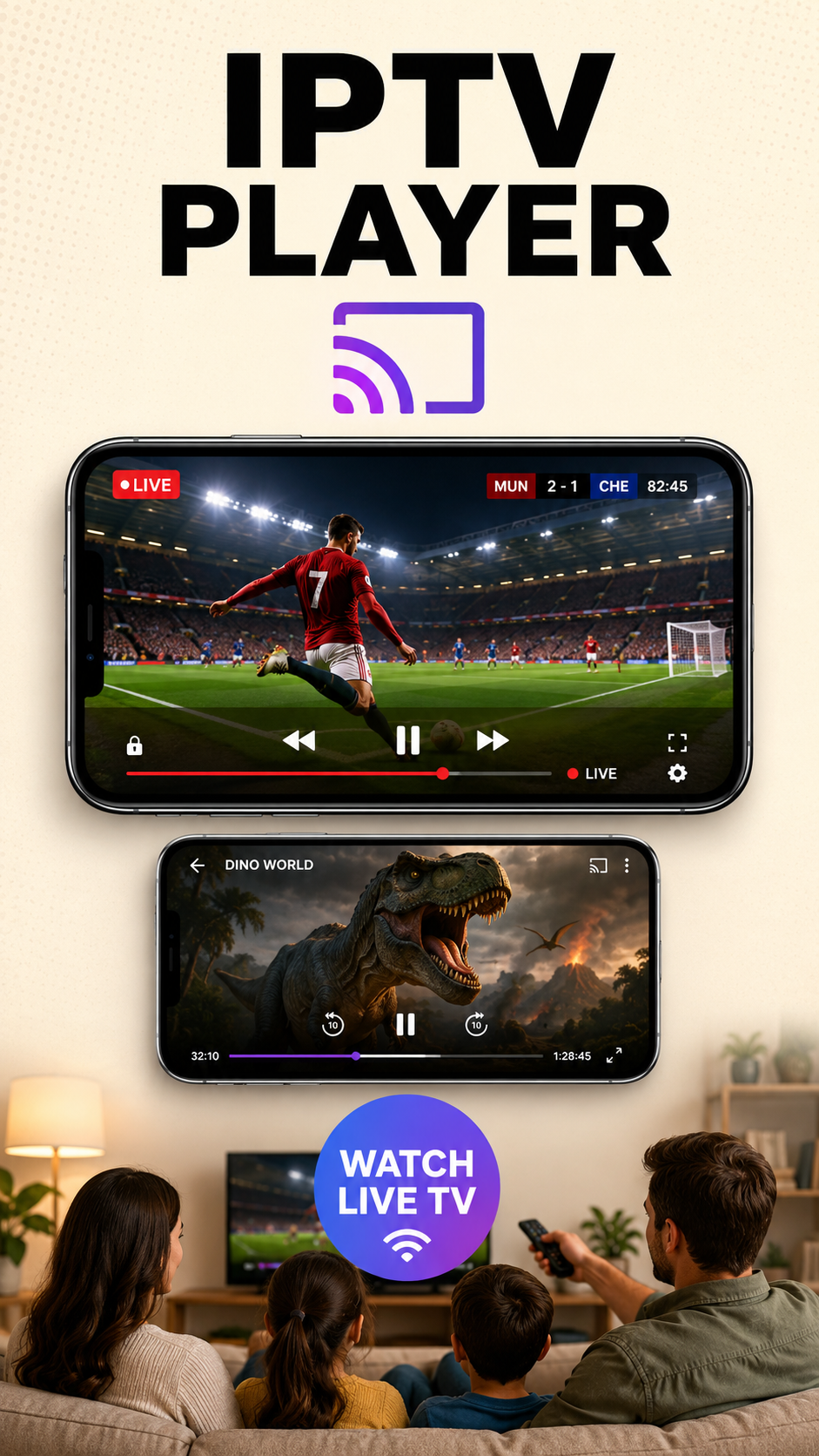
An M3U file or URL is a playlist format that can describe media streams. An IPTV player is generally a playback tool: it does not automatically provide television channels or grant rights to third-party content.
Basic playlist checks
- Use a playlist supplied by a provider or rights holder that you are authorized to access.
- Check that the M3U URL or file was copied completely and has not expired.
- Confirm that your internet connection can reach the playlist provider.
- Check whether the provider requires a username, password, token, or supported network location.
- Try refreshing or re-importing the playlist if the player offers that option.
- Contact the playlist provider if channels are unavailable or the subscription has expired.
ExploreFunTeam does not provide television channels, IPTV subscriptions, or rights to third-party broadcasts through this informational page. Users are responsible for using lawful content sources.
IPTV TROUBLESHOOTING · BUFFERING
Why does an IPTV stream keep buffering or stop playing?
Buffering can be caused by a weak connection, a busy home network, a stream-provider outage, or a format that the player or device cannot decode.
- Test another website or video to check whether the internet connection is working normally.
- Restart the router if multiple devices have connection problems.
- Pause other high-bandwidth activities, such as large downloads or cloud backups.
- Try another channel from the same authorized playlist to see whether the issue affects one stream or all streams.
- Update the player and device software where updates are available.
- Ask the playlist provider whether the stream is online and whether there are device or format requirements.
Repeated buffering on only one channel is more likely to involve that stream or its provider than the entire home network.
ROKU REMOTE GUIDE · NETWORK CHECKS
Roku remote app cannot find the streaming device
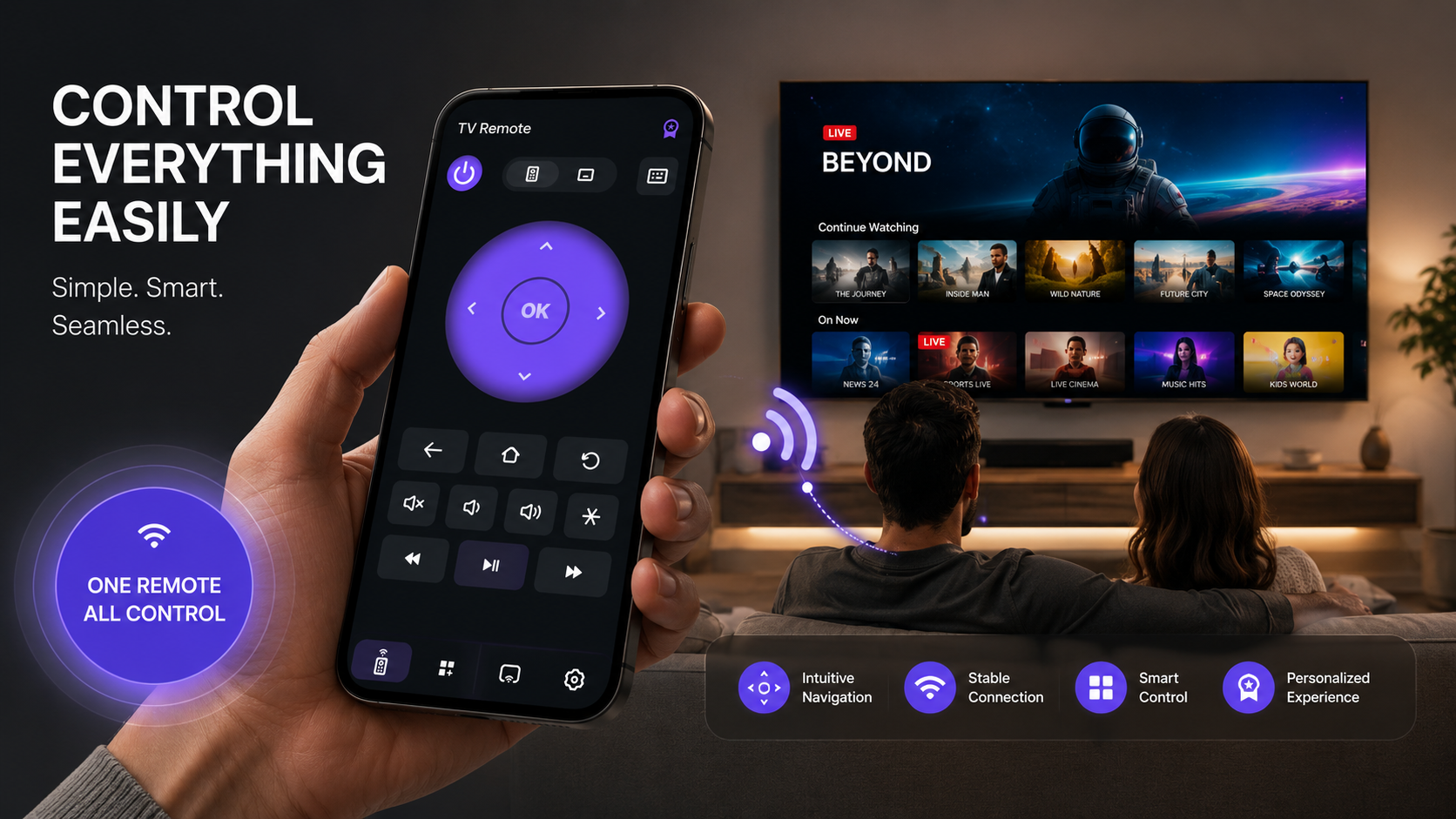
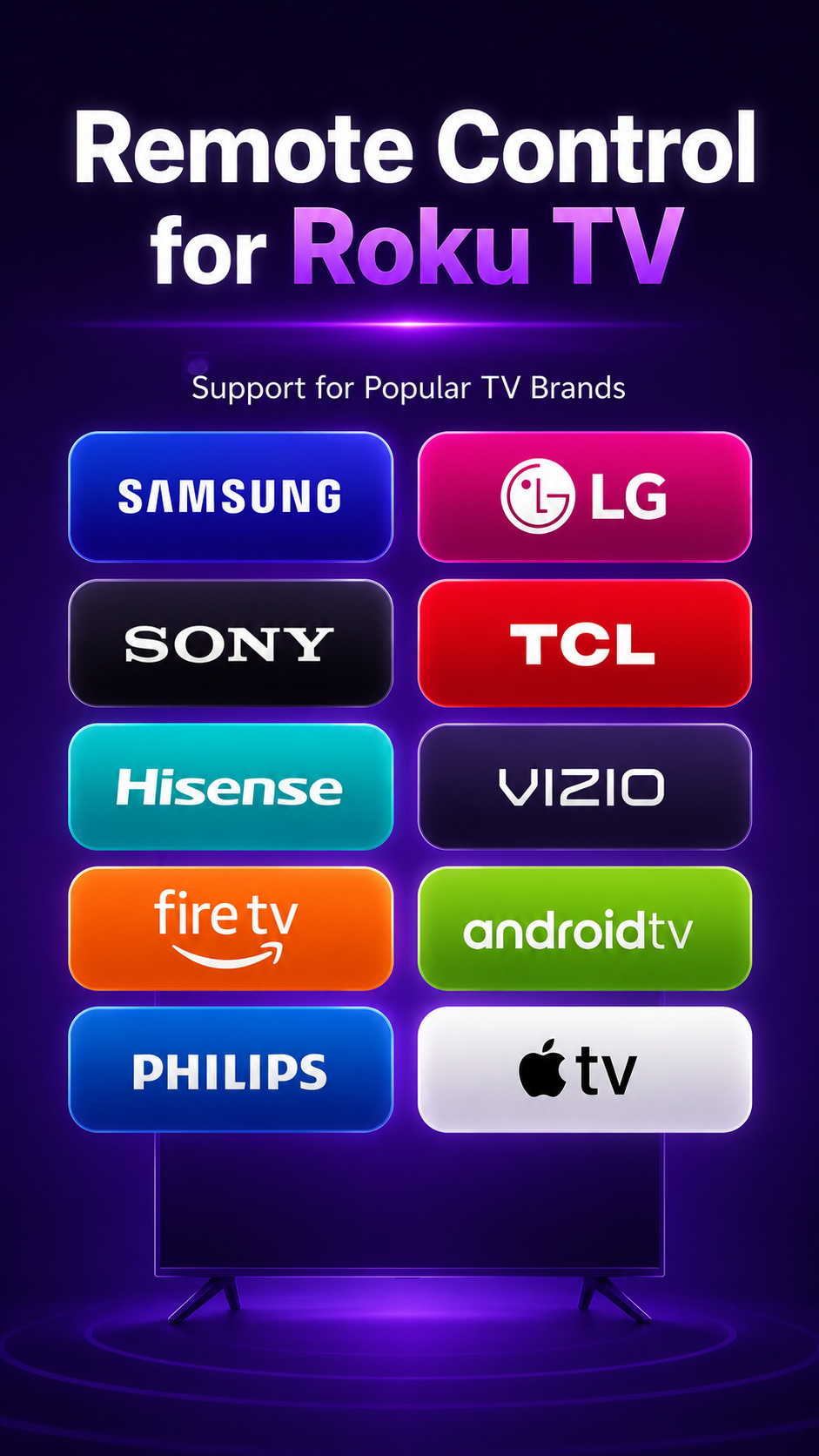
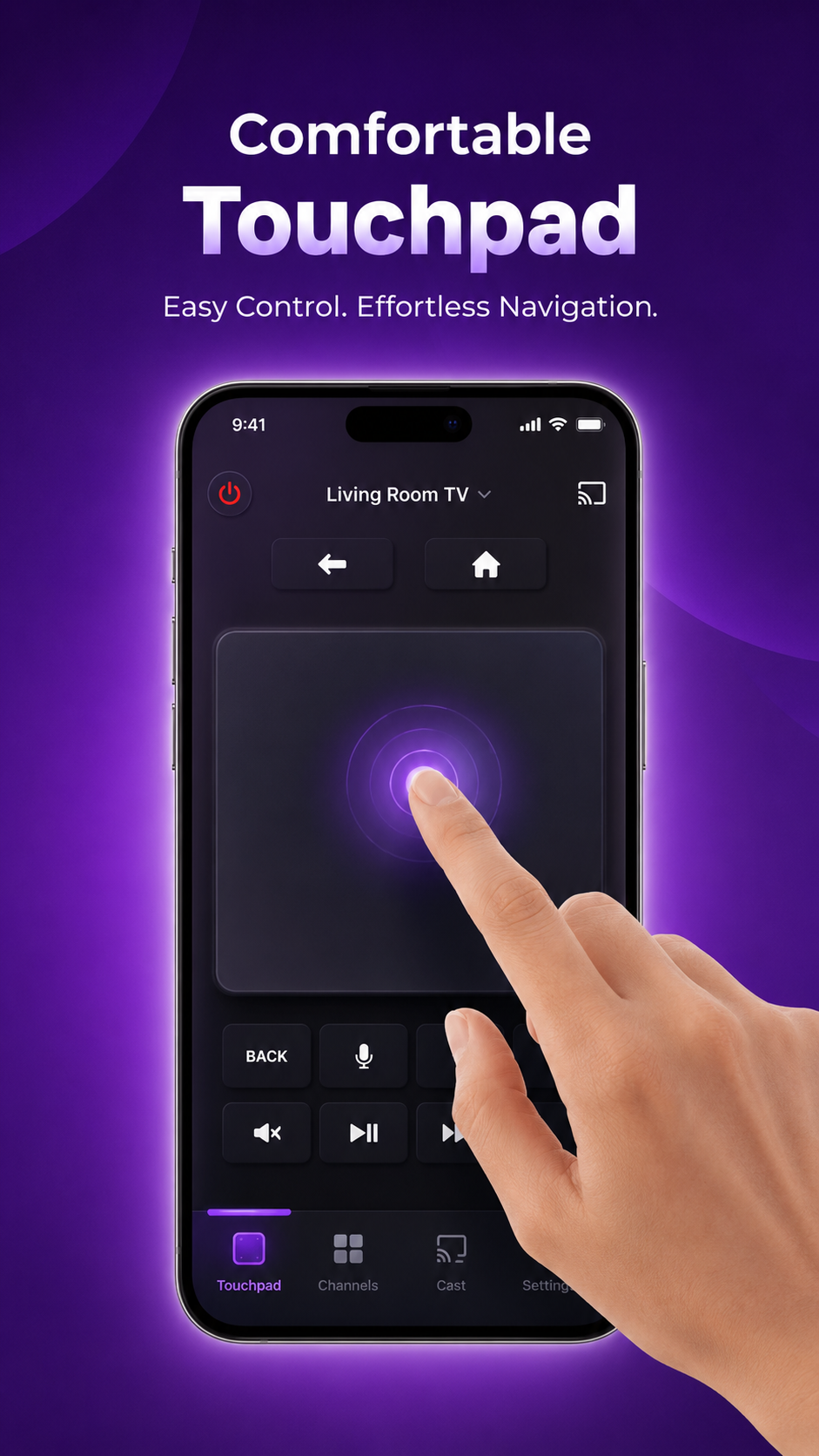
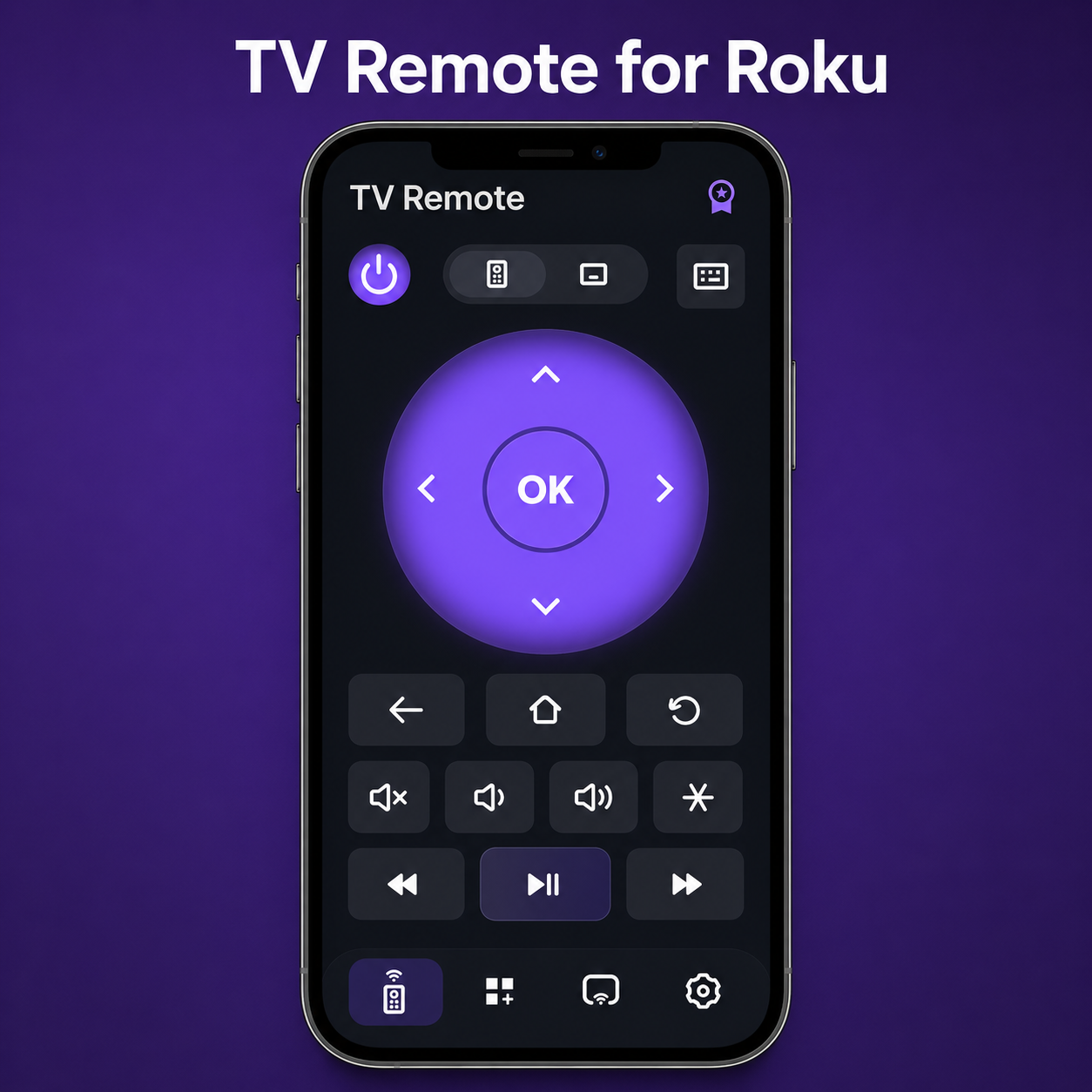
A phone-based Roku remote generally relies on network discovery and compatible device settings. The available features may vary by Roku model, app version, and region.
- Make sure the phone and Roku device are connected to the same local network.
- Check that the phone is not using a guest Wi-Fi network while Roku is on the main network.
- Review the router for client isolation or settings that block communication between wireless devices.
- Check the Roku device's network and mobile-app access settings where available.
- Restart the Roku device and phone, then reopen the remote app.
- If the device still does not appear, use the physical remote or the manufacturer's official support instructions to check network settings.
A phone remote app is not guaranteed to work with every Roku model or network configuration. Keep an alternative control method available during setup.
USB DISPLAY GUIDE · COMPATIBILITY
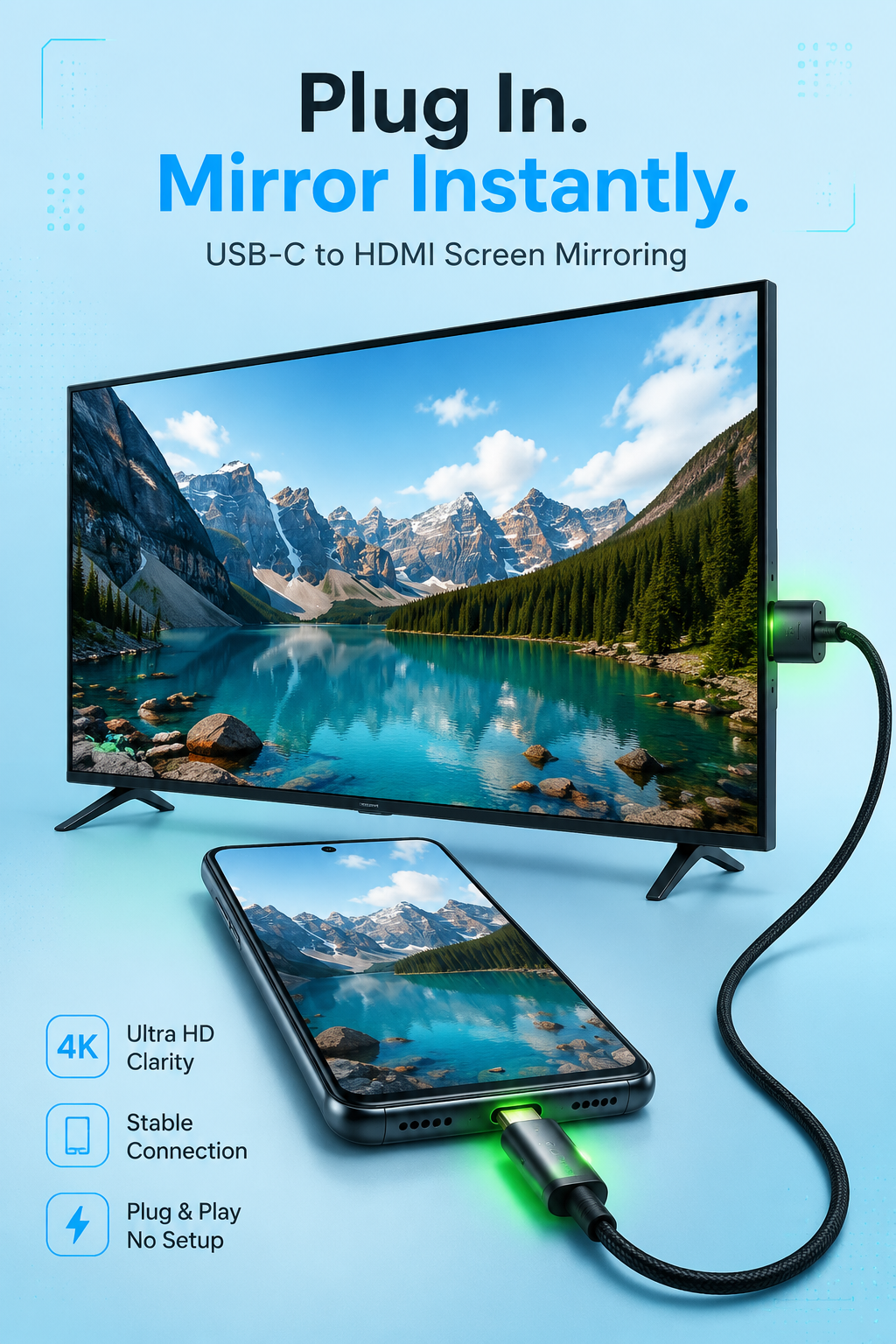
What to check before connecting a phone to a TV with USB
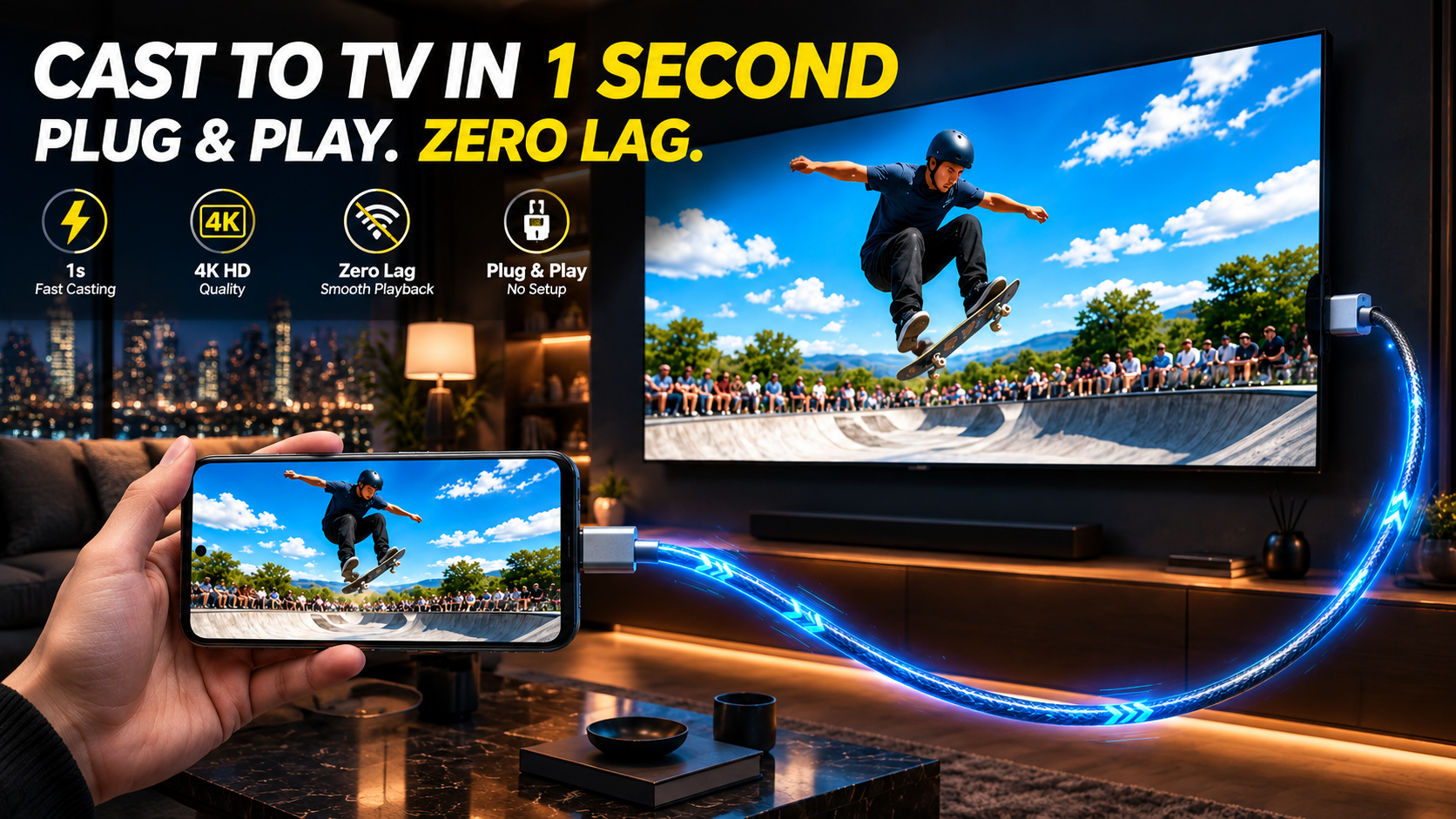
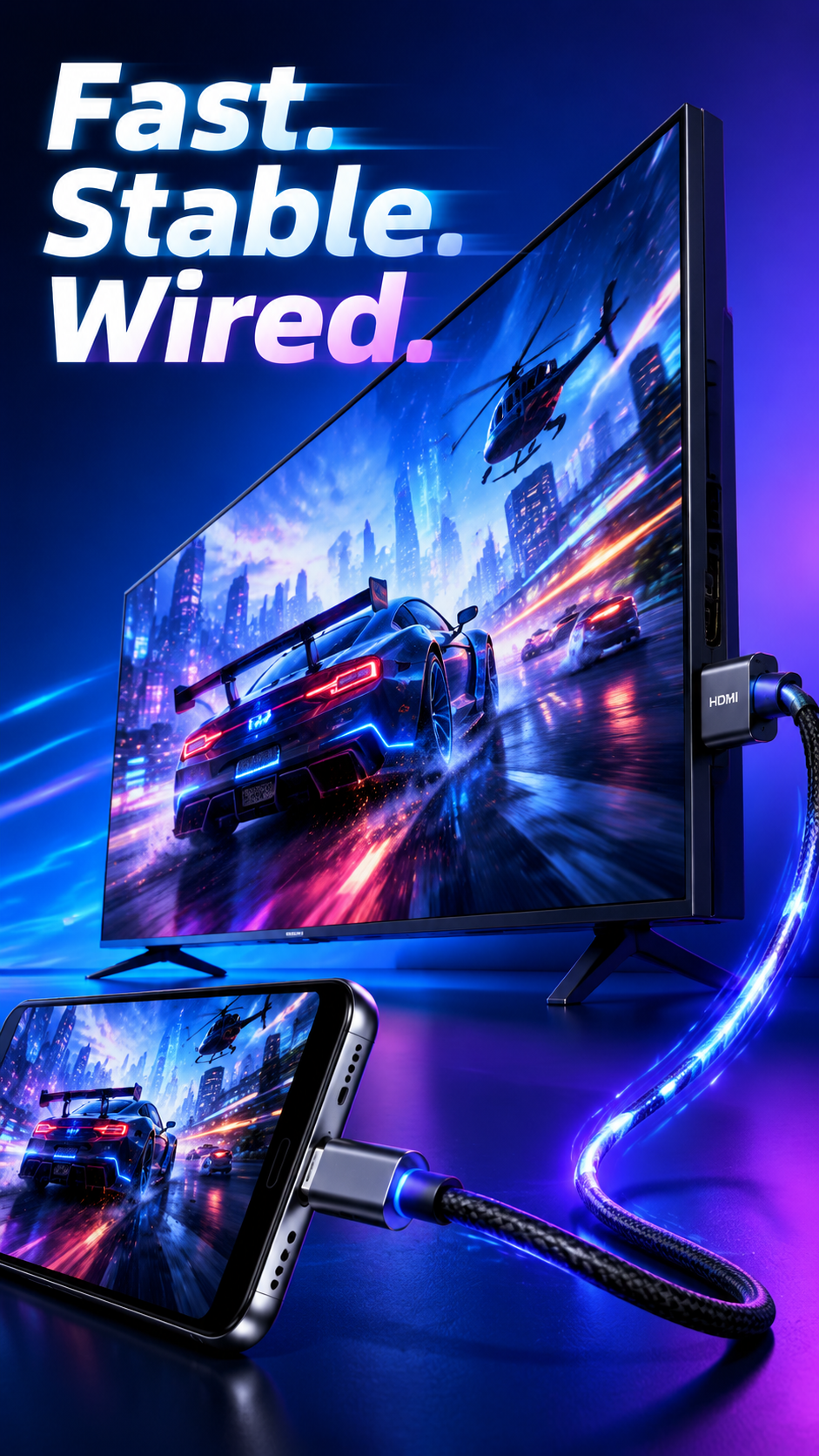
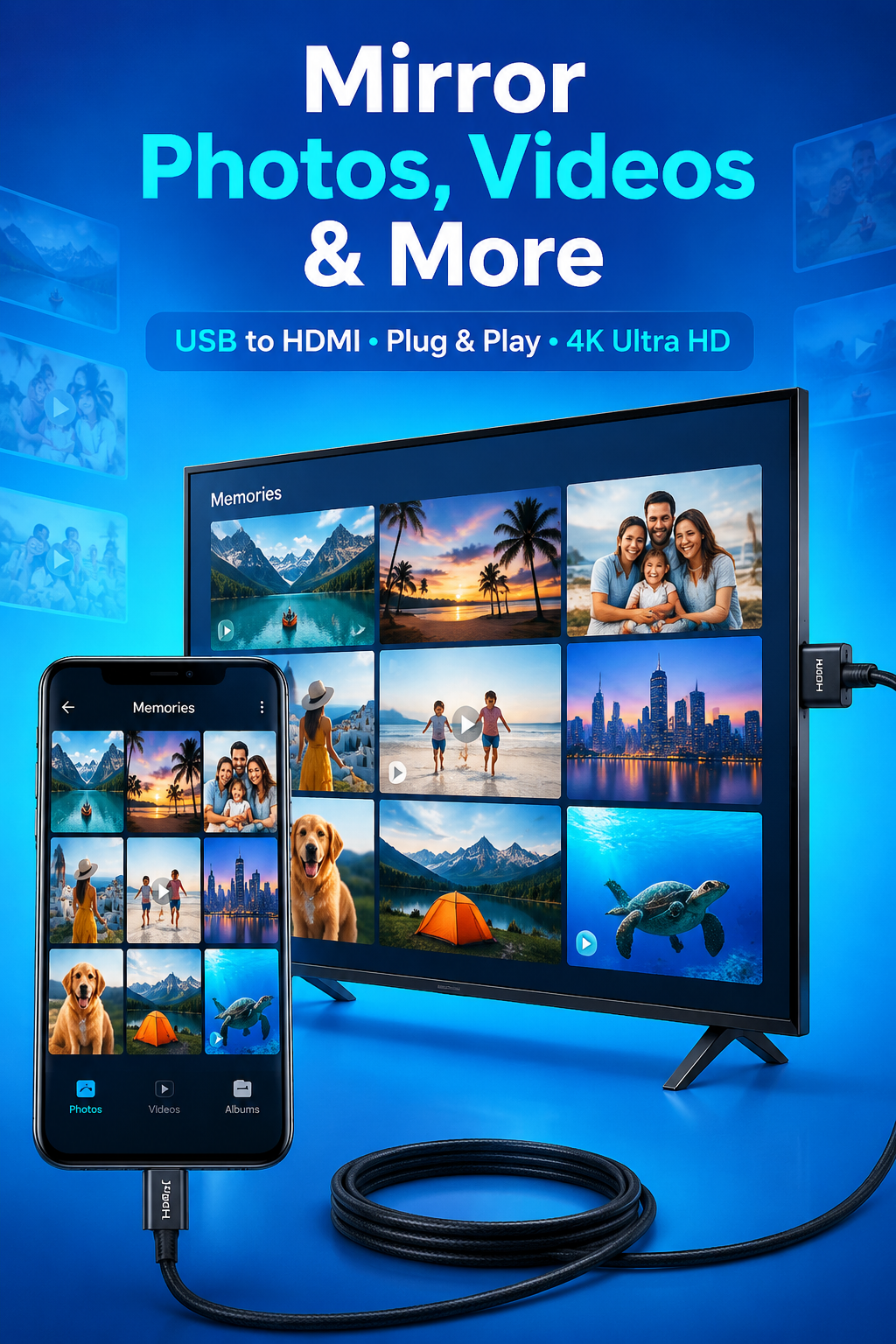
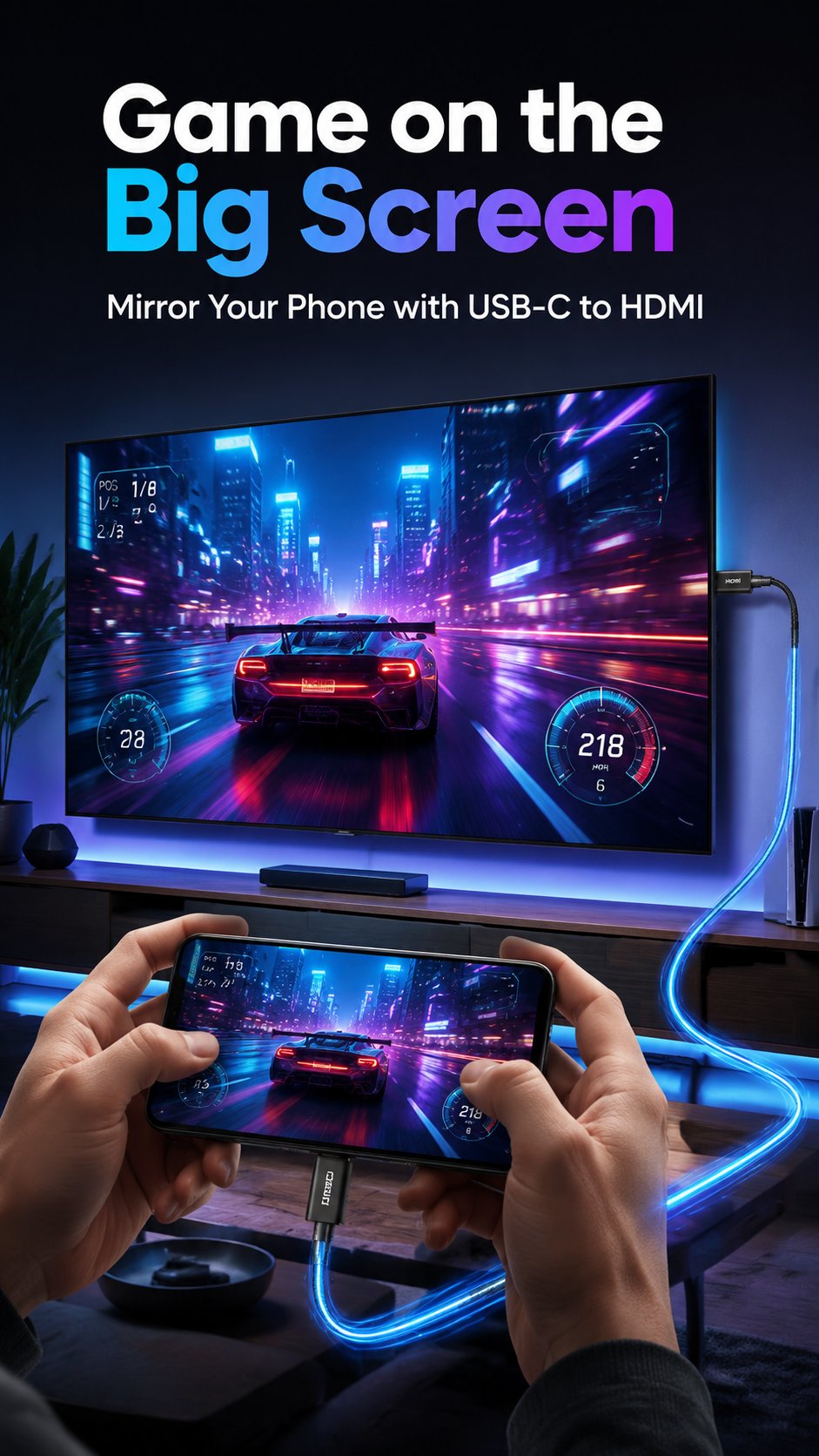
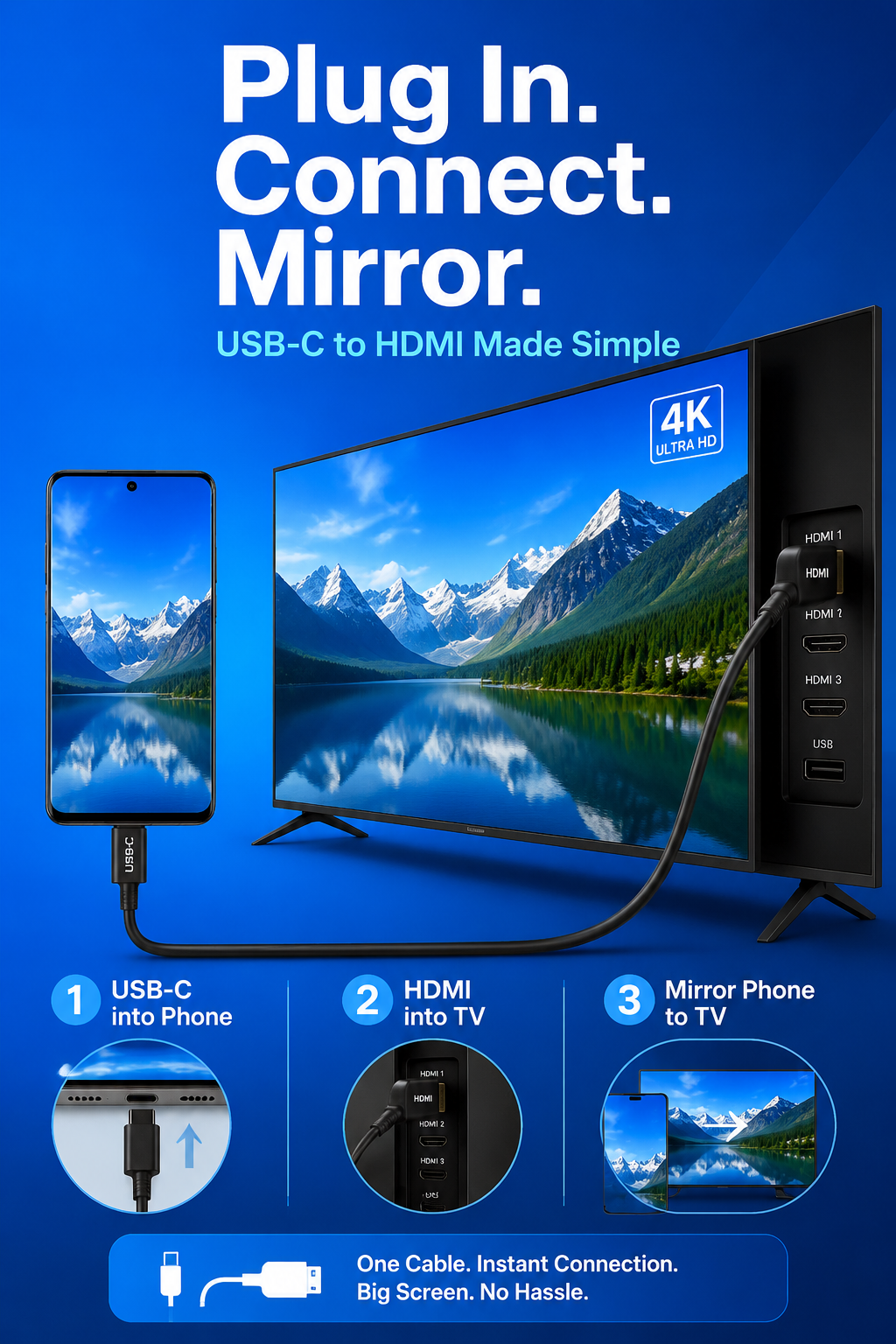
A USB cable does not automatically carry a phone's screen to a TV. Wired display output depends on the phone's hardware, supported video-output mode, adapter, cable, and TV input.
Compatibility checklist
- Check the phone manufacturer's specifications for wired video output support.
- Confirm whether the phone requires USB-C DisplayPort Alternate Mode, a specific adapter, or another supported method.
- Use an adapter and cable that support the required video standard, not only charging.
- Select the correct HDMI input on the TV if an HDMI adapter is used.
- Check whether the phone requires a permission prompt or a particular connection mode.
If the TV reports no signal, test the TV input with another source and check the phone and adapter specifications. Some phones support USB data transfer and charging but do not support wired video output.
GENERAL SUPPORT · SAFE TROUBLESHOOTING
A simple checklist before contacting technical support
Providing clear details helps identify whether a problem is related to the app, device, network, or content provider.
- App name and app version.
- Phone or tablet model and operating-system version.
- TV or streaming-device brand and model.
- Connection method: Wi-Fi casting, AirPlay, Miracast, Roku network remote, or wired adapter.
- The exact step where the problem occurs and any error message shown.
- Whether the issue happens every time or only with a particular network or media source.
Do not send passwords, playlist credentials, payment details, or other sensitive information in a support request. If a screenshot is useful, hide personal information first.
Guide content reviewed: November 3, 2026. Device menus and compatibility can change; verify model-specific details with the device manufacturer.